
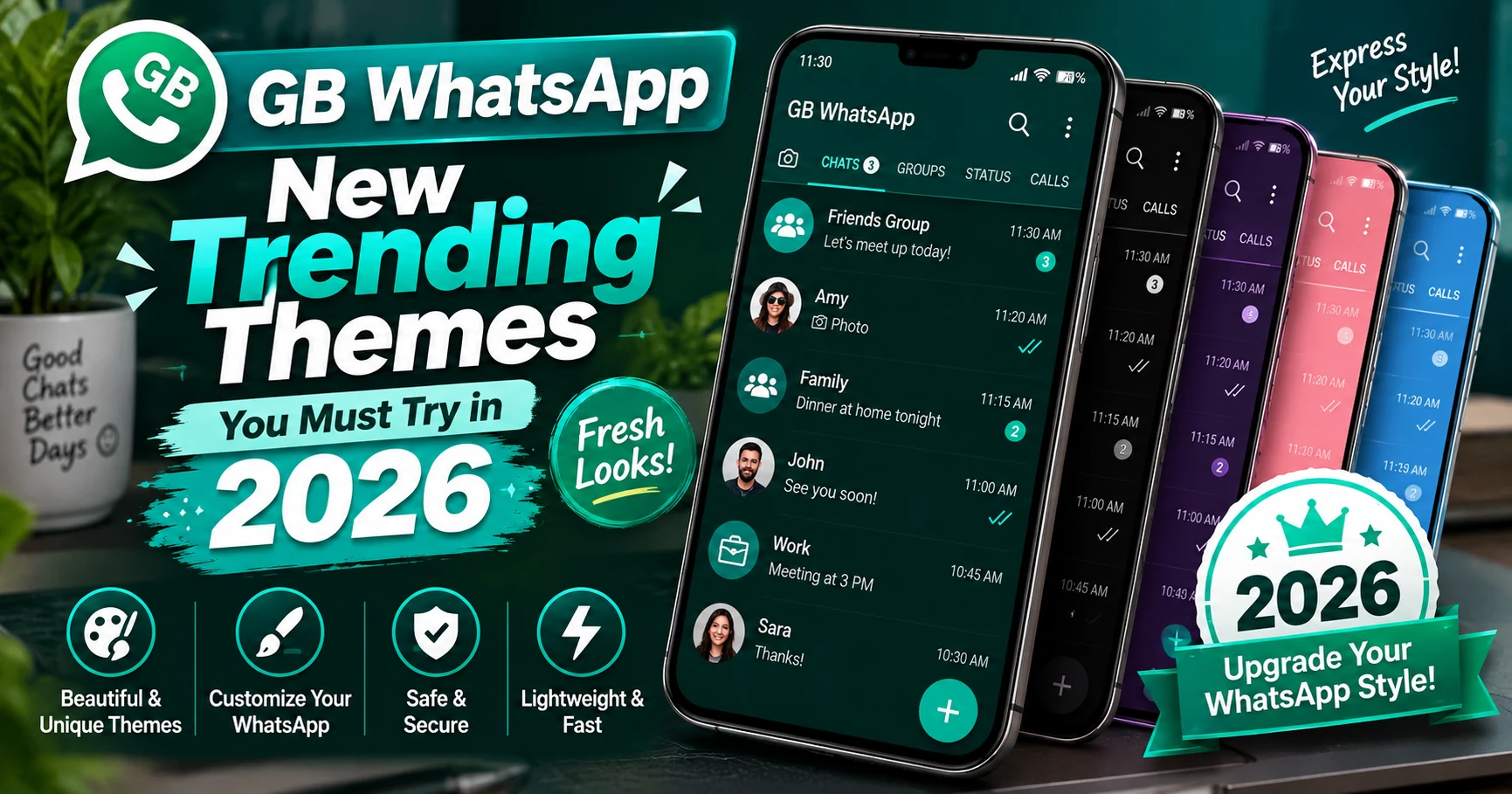
Choosing a good GB WhatsApp theme is about more than changing colors. The best themes improve readability, separate work and personal accounts, and make the interface comfortable for long daily use. This guide covers the most useful styles, how to apply them, what to avoid and how to recover when a theme breaks after an update.
- What Are GB WhatsApp Themes?
- Why Themes Are So Popular in 2026
- Dark AMOLED Themes
- iPhone-Style Themes
- Material You and Minimal Themes
- Neon and High-Contrast Themes
- Professional Themes for Work Accounts
- How to Apply a Theme Step by Step
- Create Your Own Look Without a Full Theme
- Back Up Settings Before Major Changes
- Theme Safety and Permission Checks
- Fix Theme Problems After an Update
- How to Choose the Best Theme for You
- Related GB WhatsApp Customization Guides
What Are GB WhatsApp Themes?
GB WhatsApp themes change the visual layer of the messaging interface without changing the purpose of your conversations. A theme can adjust colors, chat bubbles, backgrounds, icons, fonts, tab styling and sometimes the shape of common controls. People use themes because they want a messaging app that feels personal instead of identical on every phone. The best themes improve comfort and clarity rather than simply adding as many visual effects as possible.
Theme support varies between builds, which is important when following screenshots or tutorials from another website. One version may have a built-in theme store, another may offer manual color controls, and a third may support importable theme files. Start by checking the appearance or universal settings area in your installed build. If the options on your phone do not match a guide exactly, that usually means the build or menu layout is different rather than that your device is broken.
Why Themes Are So Popular in 2026
Customization has become one of the main reasons people search for GB WhatsApp Pro. The official app keeps a consistent brand experience, while modified builds often give users much more freedom over the interface. That freedom appeals to people who spend hours each day in chats and want a dark layout for night use, a cleaner workspace for business, or a colorful design that feels less generic.
The strongest trend is toward purposeful themes. Users are moving away from crowded skins with too many icons and toward designs that make navigation easier. Good spacing, readable message bubbles and a small number of accent colors can make the app feel modern without creating confusion. This is especially useful on smaller screens where decorative elements quickly reduce usable chat space.
Dark AMOLED Themes
Dark AMOLED themes use a nearly black background with bright text and restrained accent colors. They are popular because they are comfortable in low light and can look very clean on OLED and AMOLED phones. The design works best when message bubbles remain distinct from the background and secondary text, such as timestamps, still has enough contrast to read at a glance.
If you choose a very dark theme, test it in individual chats, group chats, settings screens and the media viewer. Some themes look excellent on the main conversation list but make buttons or quoted replies difficult to see. A good dark theme should be consistent across the whole interface, not only on the first screen.
- Prefer true dark backgrounds over random gradients.
- Keep incoming and outgoing bubbles visually distinct.
- Check link colors and quoted-message contrast.
- Avoid extremely thin fonts on dark backgrounds.
iPhone-Style Themes
iPhone-style themes imitate parts of the visual language associated with iOS, such as softer shapes, cleaner spacing, lighter navigation areas and different icon treatments. They are popular among Android users who like the iPhone aesthetic but still want Android flexibility. A theme can imitate appearance, but it does not turn an Android APK into an iOS application or add Apple-specific system behavior.
For the best result, choose a theme that adapts the full interface rather than only changing one background image. Consistency matters more than perfect imitation. If the header, tabs, bubbles and menus use unrelated styles, the theme feels unfinished. A balanced iOS-inspired design should remain easy to navigate even for someone who is used to the normal Android layout.
Material You and Minimal Themes
Material-style themes use rounded cards, simple icons, generous spacing and a controlled palette. They fit well with modern Android design because they feel native to the operating system rather than like a skin placed on top of it. Minimal themes go even further by reducing decorative elements and focusing on message content.
These themes are a good choice for work accounts because they keep attention on conversations. They also age better than highly decorative themes. When Android system colors change, a neutral theme with one or two accents is easier to adapt than a design built around many fixed colors.
Neon and High-Contrast Themes
Neon themes use bright accent colors against very dark backgrounds. They can look dramatic and are popular with gaming-style interfaces, but they need careful contrast control. Too much neon quickly becomes tiring, particularly in long conversations. The best versions use the bright color for active tabs, buttons or highlights rather than making every message bubble glow.
High contrast can improve readability when used correctly. The goal is not simply to make elements brighter; it is to create clear separation between background, text and controls. If your eyes feel strained after a few minutes, reduce saturation or switch to a calmer theme.
Professional Themes for Work Accounts
People who use dual accounts often want the work account to look obviously different from the personal one. A professional theme can use muted colors, simple typography and a clean background so it is immediately clear which account is open. This reduces the chance of sending a personal message from a business profile or mixing customer conversations with family chats.
For customer-facing use, avoid themes that make buttons difficult to find or use decorative fonts. Speed matters more than novelty when you are answering many conversations. A simple visual system also makes screenshots and shared instructions easier for team members to understand.
How to Apply a Theme Step by Step
The exact labels vary, but the process normally begins inside the app settings. Open the appearance, universal, theme or customization menu. Browse available themes or choose an import option if your build supports external theme files. Preview the theme before applying it when a preview is available.
After applying a theme, restart the interface if the app asks you to. Then check the chat list, one individual conversation, a group, settings and status screens. If any text disappears against the background or icons become unclear, revert before spending time adjusting other options. Keep a note of the previous theme so you can return quickly.
- Open GB WhatsApp settings.
- Find Themes, Appearance or Universal settings.
- Choose a built-in theme or a compatible import file.
- Preview the design and apply it.
- Restart the interface if requested.
- Check readability in chats, settings and status screens.
Create Your Own Look Without a Full Theme
You do not always need a complete theme package. Many builds let you change individual colors, fonts, wallpapers and bubble styles. This approach is safer for users who already like the basic layout and only want a few personal touches. Change one layer at a time so you can identify which setting causes a visual problem.
A simple combination works well: choose one primary accent, one neutral background, a readable font and a subtle chat wallpaper. Avoid using a different strong color for every screen. Consistency makes the interface easier to scan and also reduces the “machine-generated” look that comes from too many unrelated design elements.
Back Up Settings Before Major Changes
Before importing a large theme or changing many interface settings, use any available settings backup or export feature. At minimum, take screenshots of the main customization pages. This is useful because some theme imports overwrite multiple settings at once, and manually reversing each change can be slow.
Chat backups and theme backups are different things. A chat backup protects conversations and media; a theme backup protects appearance settings when the build supports it. Do not assume one includes the other. If you are also updating the app, prioritize the chat backup first.
Theme Safety and Permission Checks
A theme file should not need broad device permissions or a separate unknown installer just to change colors. If a website asks you to install an additional APK, disable security tools or provide account credentials for a theme, stop. Use the theme library inside the app or a trusted source that clearly identifies the file format and compatibility.
Visual customization should remain low risk. The more a theme process asks you to change outside the messaging app, the less it behaves like a normal appearance setting. Keep device security enabled and avoid theme packages distributed through deceptive pop-ups.
Fix Theme Problems After an Update
Updates can change interface components, which may cause an older theme to display incorrectly. Typical symptoms include invisible icons, overlapping text, broken colors or settings screens that no longer match. First switch back to the default theme and restart the app. If the default layout is normal, the issue is likely theme compatibility rather than the phone itself.
Then check whether a newer version of the theme exists for your build. If not, recreate the important colors manually or choose another theme. Do not repeatedly reinstall the whole app for a visual issue unless you already have a safe backup and have ruled out a theme conflict.
How to Choose the Best Theme for You
The best theme depends on how you use the app. Choose a dark theme if you message mostly at night, a minimal theme for work, a colorful theme for personal use, or an iPhone-inspired style if you prefer that visual language. The key test is whether you can still find information quickly after using the theme for a full day.
Appearance should support communication rather than compete with it. If a theme makes unread counts, links, quoted replies or status indicators harder to notice, it is not a good theme no matter how attractive the screenshots look. Keep the design that feels comfortable after real use, not only the one that looks impressive for a minute.
Related GB WhatsApp Customization Guides
Themes are only one part of customization. Privacy controls, notification settings and chat organization can also change how the app feels day to day. Start with the main GB WhatsApp APK guide for installation and safety context, then combine a readable theme with the privacy settings you actually need.
If you regularly change builds, keep a short record of the version, theme name and the settings you prefer. That makes it easier to recreate your setup after an update instead of rebuilding the interface from memory.
Frequently Asked Questions
Can I change a GB WhatsApp theme without losing chats?
Changing an interface theme normally affects appearance rather than chat data, but make a backup before large app changes and use the built-in theme system when possible.
Why does a downloaded theme fail to apply?
The theme may target another build, use an unsupported format, or contain settings that no longer match your version. Reset to the default theme and try a compatible option.
Are dark themes better for battery life?
On phones with OLED or AMOLED displays, very dark interfaces can reduce power used by lit pixels. Battery impact still depends on brightness, usage and device hardware.
Can themes affect readability?
Yes. Low contrast, decorative fonts and overly bright bubbles can make messages, timestamps and quoted text harder to read. Prioritize contrast and clear typography.
Where should I get themes?
Use the theme options included inside the build when available. Avoid unknown theme files that request unrelated permissions or require extra installers.
Get the latest download information, installation steps, privacy tips, backup guidance and troubleshooting help from one complete page.